



Since the early days of WordPress, Contact Form 7 has been helping website owners add simple forms to their sites. If you’ve trusted it on your own site, then you made a perfectly reasonable choice that millions of other site owners have made, too.
But things have officially changed.
At WordCamp Asia 2026, Contact Form 7 creator Takayuki Miyoshi confirmed on stage that the plugin will no longer receive new feature updates after version 6.2. Miyoshi’s focus is shifting to a separate project called Contactable.io, which is currently targeted for 2028.
Your existing forms aren’t going to break overnight, but a plugin in ‘feature freeze’ is a plugin that will slowly fall behind. That makes today the perfect time to migrate to a new form builder plugin before your forms get more complex and migration gets harder.
The good news is that you don’t need to start from scratch.
By the end of this tutorial, you’ll know exactly what the WordCamp announcement means for your site and how to migrate all your Contact Form 7 forms to a modern form builder using a simple import tool.
What the Contact Form 7 Feature Freeze Actually Means
The ‘Contact Form 7 abandoned’ headlines sound dramatic, so let’s explore what exactly this means in more detail.
Firstly, the plugin isn’t going to disappear overnight. Instead, it’s entering what developers call a “feature freeze,” which still has very real implications for the future of your website.
Here’s everything Contact Form 7 user needs to understand before deciding what to do next:
- Version 6.2 is the Final Major Release: Takayuki Miyoshi announced at WordCamp Asia 2026 that version 6.2 will be the last version to add new functionality. After this, Contact Form 7 moves into maintenance mode.
- Security Patches Will Continue: This is the reassuring part. Critical security holes and bugs will still be patched, so your forms won’t suddenly become a security risk. However, don’t expect any attention beyond these basic fixes.
- No Modern Tools or Integrations: Increasingly, site owners need features like AI form generation, conditional logic, and seamless payment fields. None of these are planned for Contact Form 7. If you want to keep up with your competitors, then you’ll need to switch to an alternative form builder.
- The Replacement Project is Years Away: The successor project, Contactable.io, isn’t expected to release until at least 2028. That is a long time to wait for a tool that hasn’t even launched yet, especially when proven alternatives already exist.
The truth is that as your website grows, your forms will often need to become more complex. You’ll start adding more fields, setting up custom email routing, or trying to integrate your forms with a customer relationship management (CRM) system.
What takes just a few minutes to migrate today could easily turn into a frustrating, weekend-long project in the future. The smart move is to migrate to a Contact Form 7 alternative now, while your Contact Form 7 forms are still stable and up-to-date.
The Best Way to Replace Contact Form 7 in WordPress
We’ve tried out dozens of contact form plugins, but we always find ourselves coming back to WPForms.
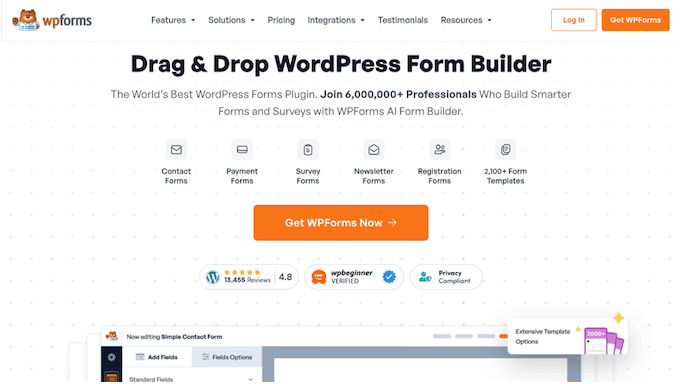
The reason is simple: WPForms strikes the perfect balance between being incredibly easy for beginners to use, while still offering the advanced features you’ll need as your website grows.
In our opinion, this is exactly what Contact Form 7 users need.
📝 If you’d like a deeper side-by-side comparison, our Contact Form 7 vs WPForms breakdown covers every key difference in detail. Alternatively, you can see our detailed WPForms review.
If you’re looking for more power, then the premium version of WPForms comes with over 2,100 ready-made form templates, smart conditional logic, and seamless payment integrations. You can even create multi-page forms to improve your form conversion rates.
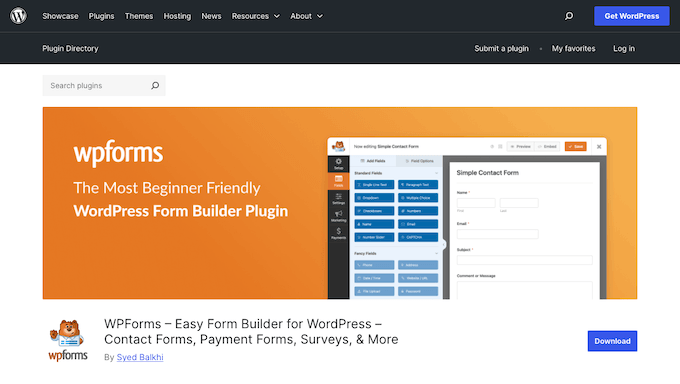
However, the free WPForms Lite plugin actually has everything a former Contact Form 7 user needs. This includes a drag-and-drop builder that lets you create professional forms in minutes without touching a single line of code.
Even better, WPForms comes with a built-in Contact Form 7 import tool. This means you can migrate all your existing forms to WPForms with just a few clicks.
Behind the scenes, WPForms reads your old forms and recreates them inside its modern, user-friendly interface. It even imports your field labels and notification settings so you don’t lose any data.
This is a must-have feature for Contact Form 7 users who want to switch to a modern, secure form builder that’s constantly evolving – without having to start from scratch.
Now, let’s look at how you can easily migrate from Contact Form 7 to WPForms today.
Step 1: Install and Activate WPForms
The first thing you need to do is install and activate the WPForms plugin on your website.
As we mentioned earlier, you can download the Lite version of WPForms for free directly from WordPress.org. For this guide, I’ll be using the Lite version so you can migrate away from Contact Form 7 today, regardless of your budget.
However, at some point you might need more advanced features, such as the ability to accept online payments, create conversational forms, or connect to email marketing services like Mailchimp. In that case, you can easily upgrade to the premium plugin at any time.
If you’ve never installed a plugin before, don’t worry! You can follow our step-by-step guide on how to install a WordPress plugin.
Once the plugin is activated, you’re ready to start the migration process.
Step 2: Run the WPForms Setup Wizard
Upon activation, WPForms will automatically launch a quick setup wizard. This tool is designed to walk you through the entire setup experience in just a few minutes.
The wizard helps you get up and running quickly, so we highly recommend completing the entire process rather than skipping it.
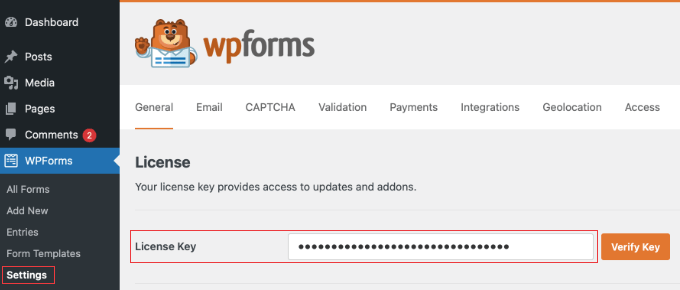
If you’ve upgraded to the premium version of WPForms, you’ll also need to enter your license key. You can find this key by logging into your account on the WPForms website or by checking your purchase confirmation email.
After completing the setup process, WPForms will offer to help you create your very first form. Since we’re going to import your existing forms from Contact Form 7 instead, skip this step when prompted.
Step 3: Open the WPForms Import Tool
This is where the migration actually begins. WPForms comes with a dedicated Tools page that includes a built-in Contact Form 7 importer, so you don’t have to worry about installing any extra addons.
To access the importer, go to WPForms » Tools.
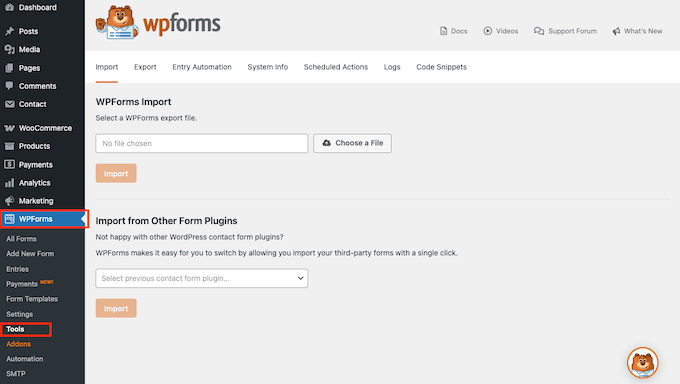
If it isn’t already selected, click the ‘Import’ tab.
Next, open the ‘Import from Other Form Plugins’ dropdown and select ‘Contact Form 7.’
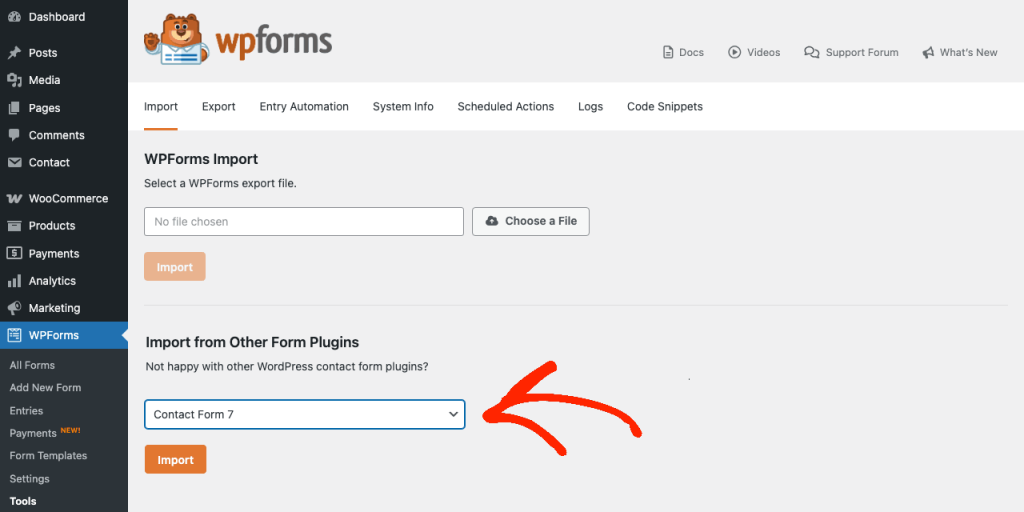
After that, click the ‘Import’ button.
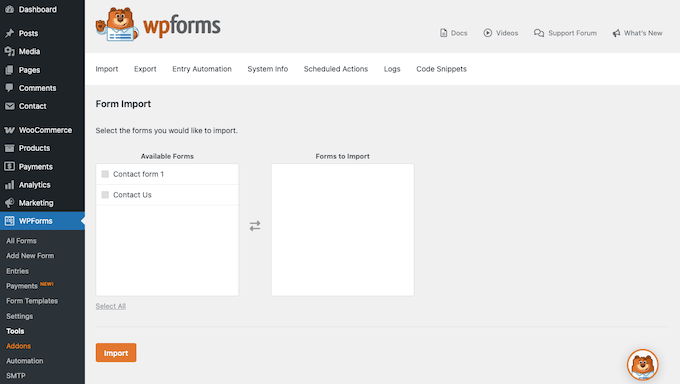
WPForms will now scan your site and display a list of every Contact Form 7 form it finds. This makes it easy to see exactly what you need to migrate.
Step 4: Choosing Which Forms to Import to WPForms
After the scan finishes, you’ll see two columns labeled ‘Available Forms’ and ‘Forms to Import.’ This is where you decide exactly which forms you want to move over.
If you want to migrate all your Contact Form 7 forms, simply click the ‘Select All’ link.
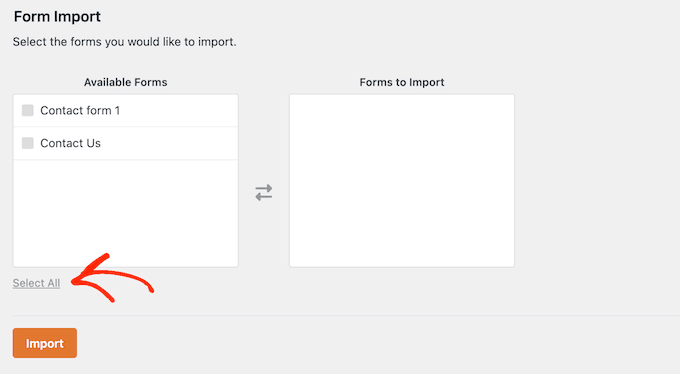
Alternatively, you can manually check the box next to each individual form you want to import.
This is a great opportunity to clean up your site by leaving behind any old test forms or duplicates you no longer need.
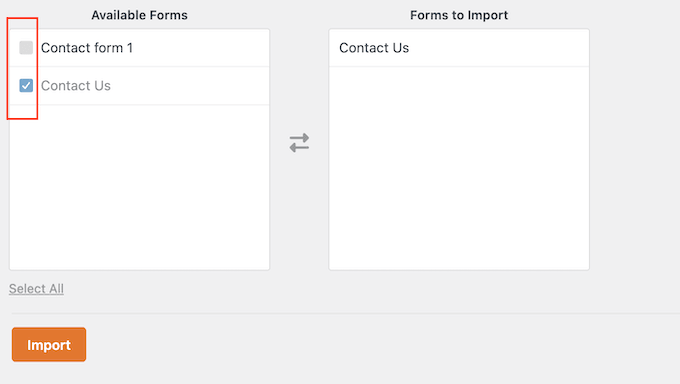
When you’re happy with your selection, go ahead and click the ‘Import’ button. WPForms will then begin recreating each form inside its own drag-and-drop builder.
Step 5: Review the Imported Forms
Once it’s finished, WPForms will show a results screen with a “Congrats, the import process has finished!” message. This is an important step, so we recommend looking at the report carefully rather than skimming past it.
Every form that imported successfully will show up with a green checkmark, along with quick ‘Edit’ and ‘Preview’ links.
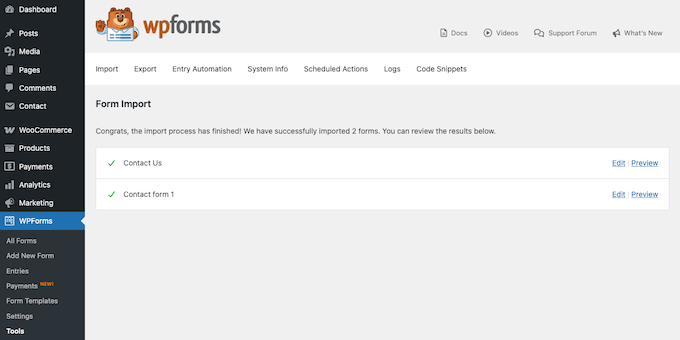
WPForms can migrate most standard fields like text, email, dropdowns, checkboxes, and file uploads without any issues.
However, Contact Form 7 might occasionally use custom fields or unique shortcodes that don’t have direct WPForms equivalents. In these cases, WPForms will flag the form for review.
We recommend making a quick note of any flagged forms. In the next step, we’ll show you how to easily adjust these forms manually before publishing them to your site.
Step 6: Reviewing and Polishing Your New Forms
Now it’s time to open your migrated forms and check that everything looks right. It’s always worth spending a few extra minutes to catch small issues before your visitors do.
To get started, head over to WPForms » All Forms.
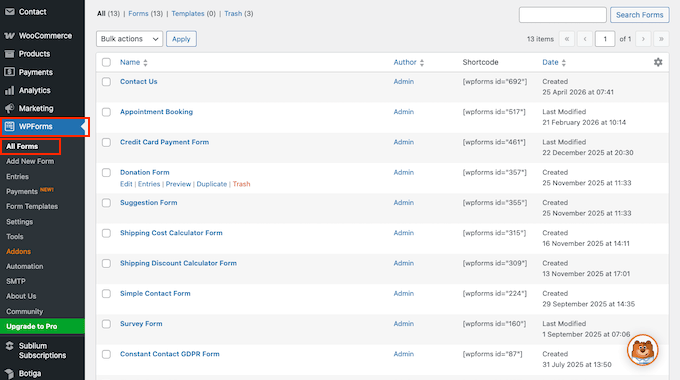
Here, you’ll see a list of every form that WPForms just imported.
To take a closer look at a specific form, simply hover your mouse over it and click the ‘Edit’ link.
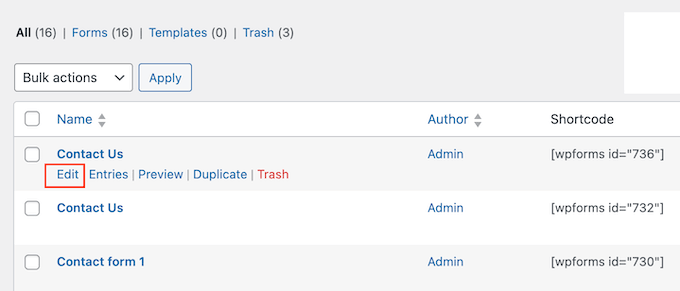
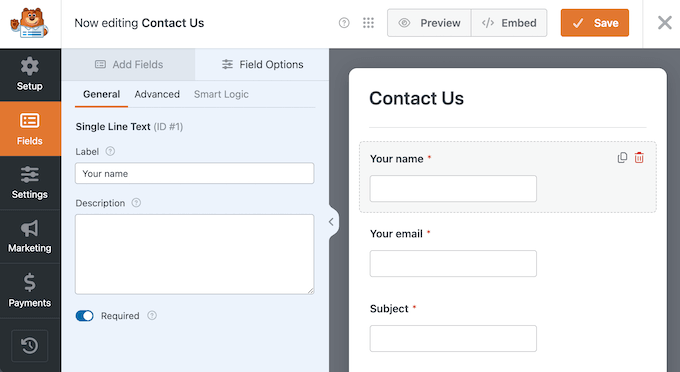
This opens the form in the WPForms drag-and-drop editor. You can now check each field to make sure it matches your old Contact Form 7 setup.
We recommend paying special attention to required fields, dropdown options, and custom field labels.
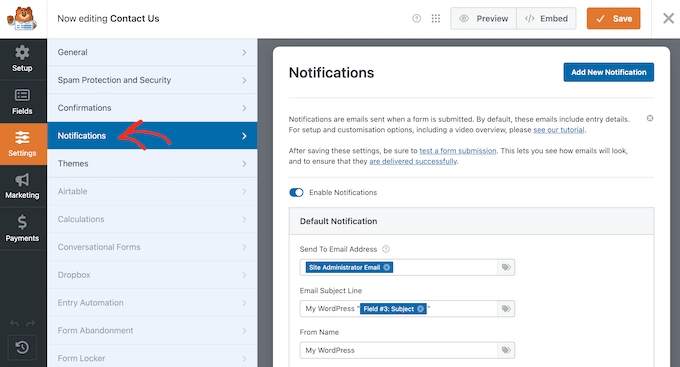
After that, click the ‘Settings’ tab on the left side of the builder to confirm your configurations.
In particular, you should check the ‘Notifications’ tab to ensure your email address is correct. While WPForms imports your existing settings, it’s always a good idea to confirm that submissions will go to the right inbox.
When you’re happy with the setup, click the ‘Save’ button in the top-right corner to store your changes.
If you’d like more advanced control here, our guide on how to create a contact form with multiple recipients walks you through routing different submissions to different team inboxes.
Step 7: Replacing Your Old Forms
Your forms are now ready inside WPForms, but your site is still showing the old Contact Form 7 content to visitors. You’ll need to update your site so that visitors can start using your new forms.
First, open the page or post that contains your Contact Form 7 form. Then, click on the existing Contact Form 7 block to select it.
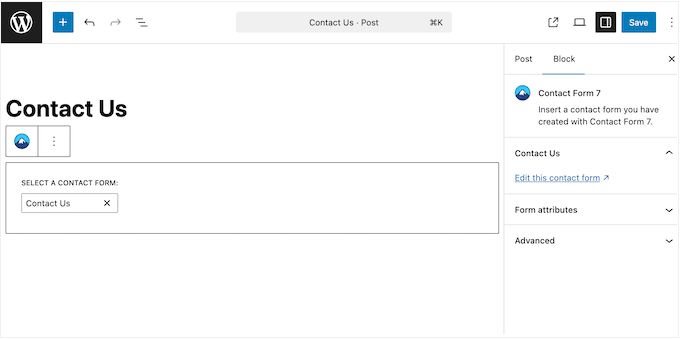
Finally, press the ‘Delete’ key on your keyboard to remove it.
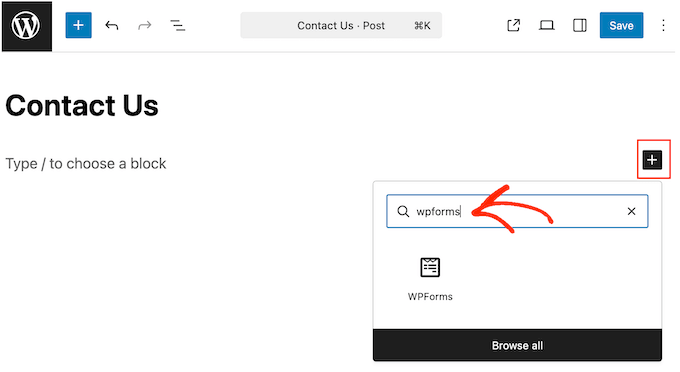
With the old form gone, click the ‘+’ button to add a new block to the page. In the popup that appears, start typing ‘WPForms.’ When the correct block appears, click to add it to your page.
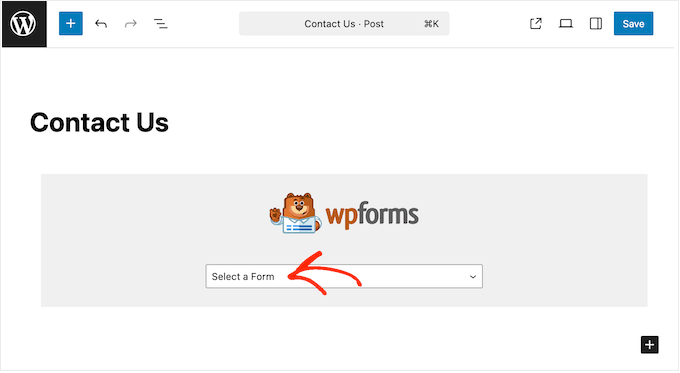
Next, open the dropdown menu inside the WPForms block and select the specific form you want to display.
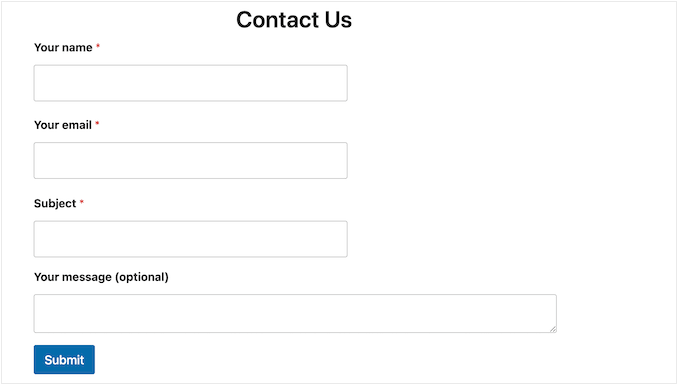
One of the best parts about WPForms is that the form will load directly inside the editor. This lets you see exactly how the form will look when visitors arrive on your site.
💡 If the styling looks slightly different than your old form, don’t worry! WPForms is designed to automatically inherit your WordPress theme’s styles so it looks great right out of the box.
Once you’re happy with how everything looks, go ahead and publish or update the page as normal to make your new form live.
Step 8: Testing Your New Forms
Before going any further, you need to confirm that your new form actually works. We always run at least one test submission on every form we migrate. It’s the only way to guarantee your data is being collected properly and your notifications are firing as intended.
To do this, open your live page in a regular browser tab (not the WordPress editor). Then, fill out the form exactly like a real visitor would, and click ‘Submit.’
Next, check your inbox to confirm the email notification has arrived safely.
💡 If you upgrade to the premium version of WPForms, you can also see every submission right in your WordPress dashboard by going to WPForms » Entries.
If the email doesn’t arrive, your site might have email deliverability issues that existed before you migrated to WPForms. In that case, we recommend installing a WordPress SMTP plugin to fix the problem.
SMTP is the standard way to send emails through a reliable provider instead of relying on your web host, which often gets flagged as spam. For a complete walkthrough, see our guide on how to set up WP Mail SMTP with any host.
Once you’ve confirmed the form is working from start to finish, you’re officially ready to retire Contact Form 7.
Step 9: Deactivate and Delete Contact Form 7
This is the final step, and we encourage you to take it slowly. You should only deactivate Contact Form 7 once you’re 100% sure that your entire site is using WPForms.
⚠️ For extra security, you may want to create a backup using a plugin such as Duplicator before deleting Contact Form 7 completely.
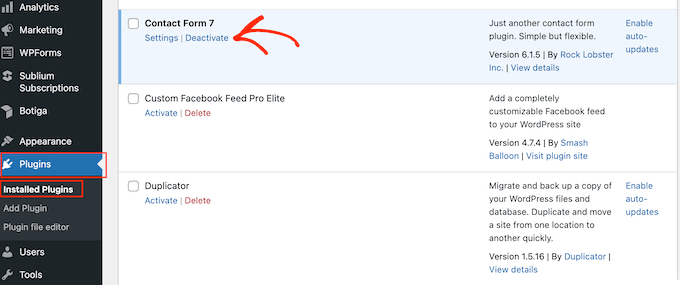
After that, go to Plugins » Installed Plugins, find Contact Form 7 in the list and click its ‘Deactivate’ link.
After that, we recommend visiting your site one more time. Load every page that used to display a Contact Form 7 form, just to check that everything still looks right.
If any page shows a leftover [contact-form-7] shortcode instead of a form, it means you overlooked this form earlier. If that happens, simply follow the steps to replace this shortcode with the WPForms block.
Once you’ve confirmed that every page is using WPForms cleanly, head back to the Plugins screen and click ‘Delete’ to remove Contact Form 7 from your site entirely.
It’s as easy as that! Your forms are now running on a modern plugin that’s built to grow with your site, and you’re ready to take advantage of all the powerful features that Contact Form 7 was missing.
Getting More Out of WPForms Now That You’ve Migrated
Now that your migration is complete, it’s the perfect time to explore the features WPForms offers that simply don’t exist in Contact Form 7.
Here’s the features we always recommend trying out, especially if you upgrade to the premium plugin:
- AI Form Generation: This feature lets you describe the form you want in plain language, like “a feedback form with a rating system.” WPForms will then build it for you in seconds. This is a life-saver when you need to create a new form, fast.
- Built-in Spam Protection: WPForms uses invisible token validation to stop spam without any frustrating CAPTCHA challenges. This feature makes a huge impact on your form completion rates.
- Smart Conditional Logic: This allows you to show or hide fields based on a visitor’s previous answers. We love using this for quote requests, as it makes long forms feel much shorter and more personal.
- Smart Payment Forms: Turn your forms into a revenue tool by connecting Stripe, PayPal, Square, or Authorize.net. This is great for recurring donations, registrations, or custom orders.
- Conversational Forms: Instead of showing 20 questions at once, this feature displays one question at a time, just like a real conversation. This is a total game-changer for survey completion rates because it feels much less overwhelming for your visitors.
- Multi-Page Forms with Progress Bars: If you have a long application or registration form, WPForms lets you break it into multiple pages.
- Form Abandonment: Imagine if you could see every lead that almost contacted you. This feature lets you capture those partial entries so you can follow up with potential leads who got distracted. It’s like a ‘recovered cart’ feature, but for your contact forms.
Frequently Asked Questions About the Contact Form 7 Feature Freeze
Since the Contact Form 7 announcement, we’ve been getting lots of questions from our readers. It’s clear that you’re concerned about what this feature freeze means for your website.
Whether you’re worried about your existing forms breaking, wondering if the free version of WPForms is enough, or trying to decide if you should switch now or wait, these answers will help you move forward with confidence.
Is Contact Form 7 actually abandoned, or is it just in feature freeze?
Technically, it’s a feature freeze rather than a full abandonment.
Takayuki Miyoshi confirmed at WordCamp Asia 2026 that version 6.2 will be the final major release for Contact Form 7. Moving forward, the development team will only provide critical bug fixes and security patches.
While Contact Form 7 isn’t being removed from the WordPress.org repository, it effectively means that no new features, modern integrations, or user experience improvements will be added.
In the fast-moving WordPress ecosystem, a plugin that stops evolving can quickly become a compatibility risk or a security liability. It’s much safer to migrate now while your forms are working correctly, rather than waiting until a conflict or security vulnerability forces you to move later.
Will my existing Contact Form 7 forms suddenly break if I don’t migrate?
No, your forms won’t suddenly break.
As Miyoshi confirmed, Contact Form 7 will continue to receive critical bug fixes and security patches. This means your forms should continue to work with WordPress core updates for the foreseeable future.
However, the real risk is gradual rather than sudden. As the rest of the web moves forward, a plugin in ‘feature freeze’ starts to fall behind.
You’ll eventually find yourself needing modern features that simply aren’t coming to Contact Form 7. Plus, while your forms might work, they’ll start to look and feel dated compared to competitors who are using modern form builders.
Should I just wait for Contactable.io instead of switching now?
We wouldn’t recommend waiting. While Takayuki Miyoshi discussed his vision for Contactable.io during his session in Mumbai, the reality is that a full, stable release is still a long way off.
Current estimates place a target launch closer to 2028, which is years away. Even when it does launch, it will be a brand-new plugin without the years of testing, massive community support, or the deep ecosystem of integrations that WPForms already offers.
Migrating to a stable, actively maintained plugin today gives you immediate access to modern tools like:
- AI-powered builders to save you time.
- Invisible spam protection to keep your inbox clean.
- Built-in entry management so you never lose a lead.
If Contactable.io eventually launches and turns out to be a game-changer, you can always reconsider then. But for now, you won’t lose anything by switching to WPForms. In fact, you’ll likely find that your site runs much more smoothly.
If you want to compare other options before deciding, you can also explore our roundup of the best WPForms alternatives to see what else is actively being developed.
Do I need the paid version of WPForms to migrate from Contact Form 7?
No, you don’t need the paid version to migrate. The free WPForms Lite plugin includes the Contact Form 7 importer, plus the full drag-and-drop builder.
Most former Contact Form 7 users find that the Lite version is more than enough to get started. You can always upgrade later if your business needs grow.
What happens to my existing Contact Form 7 entries during migration?
The short answer is that your past form submissions won’t migrate over. This is because Contact Form 7 doesn’t actually store entries inside your WordPress database. Instead, it simply emails them to you.
Since there’s no entry list for the importer to find, there’s nothing to migrate.
If you need to keep a record of your past Contact Form 7 submissions, we recommend checking your email inbox for this information. Alternatively, if you’ve been using the companion Flamingo plugin to save your entries, then you can export your messages as a CSV file.
Final Thoughts on the Contact Form 7 Feature Freeze
If you’ve been following along with this guide, then every one of your old Contact Form 7 forms is now running on a modern plugin that’s supported by an entire development team.
The Contact Form 7 era was a historic one for WordPress, and it served millions of sites well for nearly two decades. But as we move toward the future of the web, having a form builder that evolves alongside your site is no longer a luxury – it’s a necessity.
Additional Resources for WordPress Form Building
Now that you’ve made the move to WPForms, you might be wondering what else you can do with a modern form builder.
Whether you’re trying to grow your email list, accept your first online payment, or build something more advanced like a survey or booking form, the resources below will walk you through it step-by-step:
- How to Use a Contact Form to Build Your Email List
- How to Create GDPR Compliant Forms in WordPress
- How to Create a Survey in WordPress (with Beautiful Reports)
- Best Order Form Plugins for WordPress
- How to Create a Booking Form in WordPress
- Best File Upload Plugins for WordPress (Free & Paid)
- How to Create a Custom User Registration Form
- How to Easily Create a Quiz in WordPress
If you liked this article, then please subscribe to our YouTube Channel for WordPress video tutorials. You can also find us on Twitter and Facebook.
The post Contact Form 7 Freezes New Features – What WordPress Users Should Do Next first appeared on WPBeginner.